
It enables one to search several different housing information with RPA on sahibinden.com and save the results in excel.
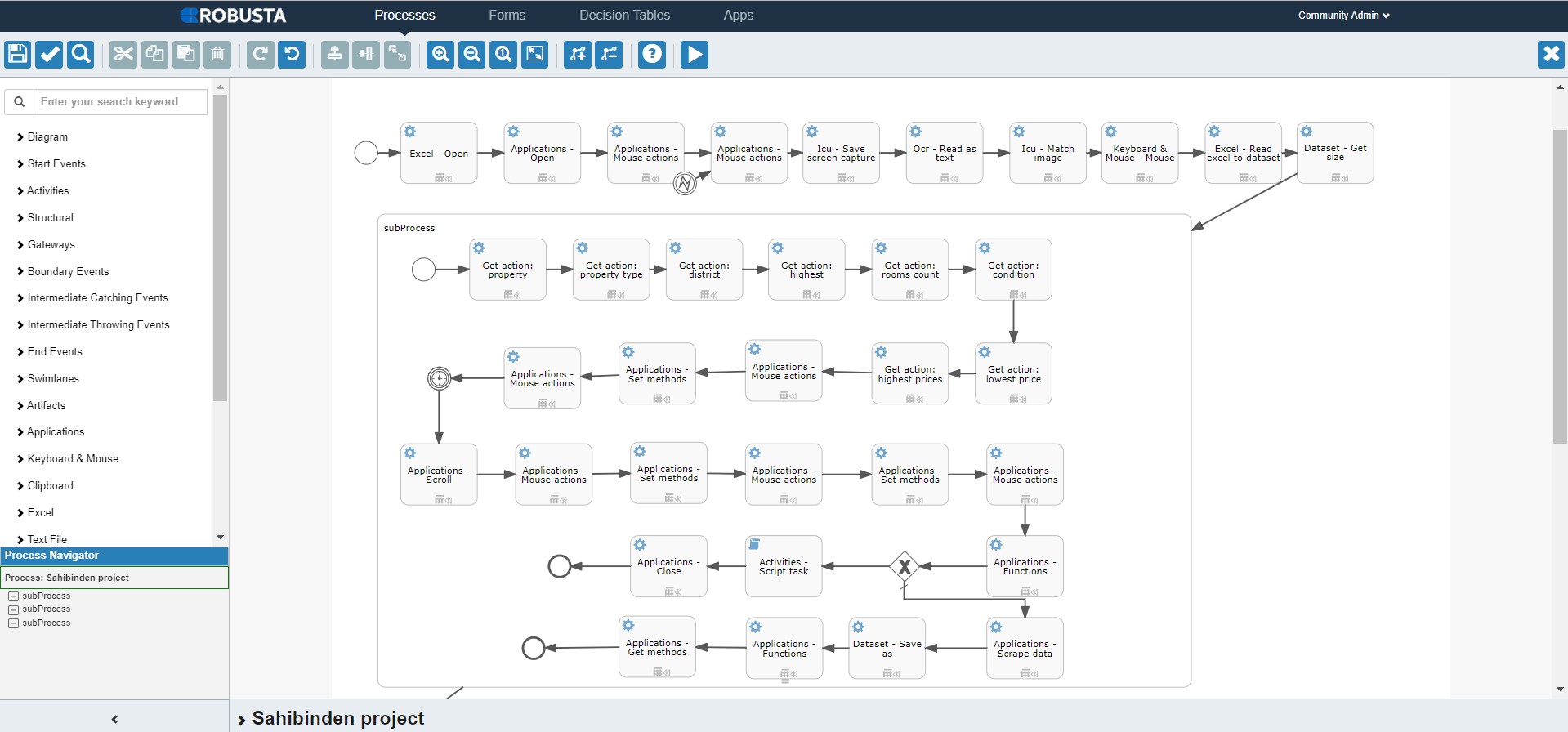
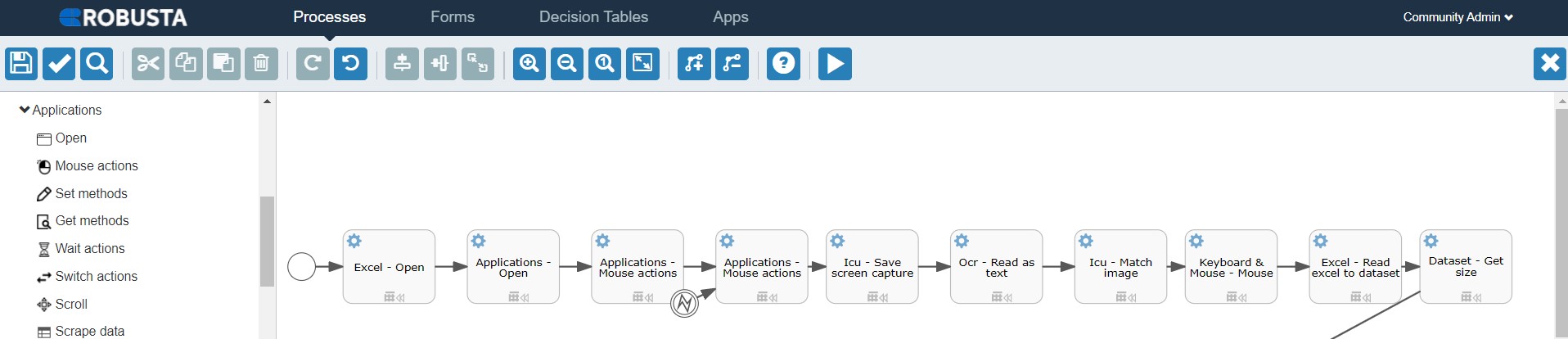
The process starts with the Open activity under Application, one of the components on the left, to open sahibinden.com Excel file and the website, and chose the “Chrome” option from the type field.
NOTE: You can access the Excel Folder used in the process here.
Then, managed the error with the Mouse action component to prevent the Captcha on the website, and passed the Captcha to access the sahibinden.com home page. Then, took a screenshot of the page with the ICU component and saved it in the Robusta Challenge folder. Next, kept the “Sahibinden.com” logo in a variable as text with the OCR component, found its coordinates, and clicked with the Keyboard Mouse component for the predetermined coordinates.
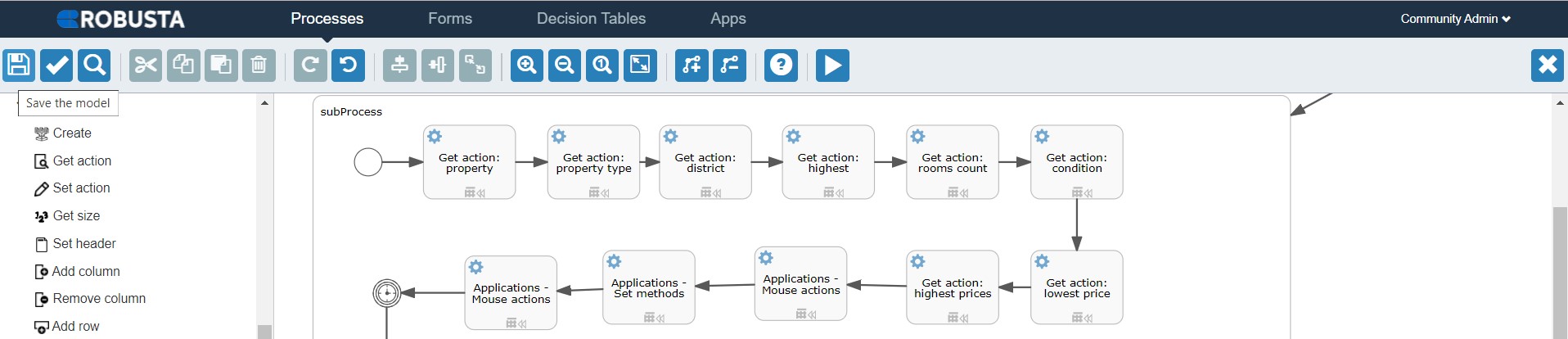
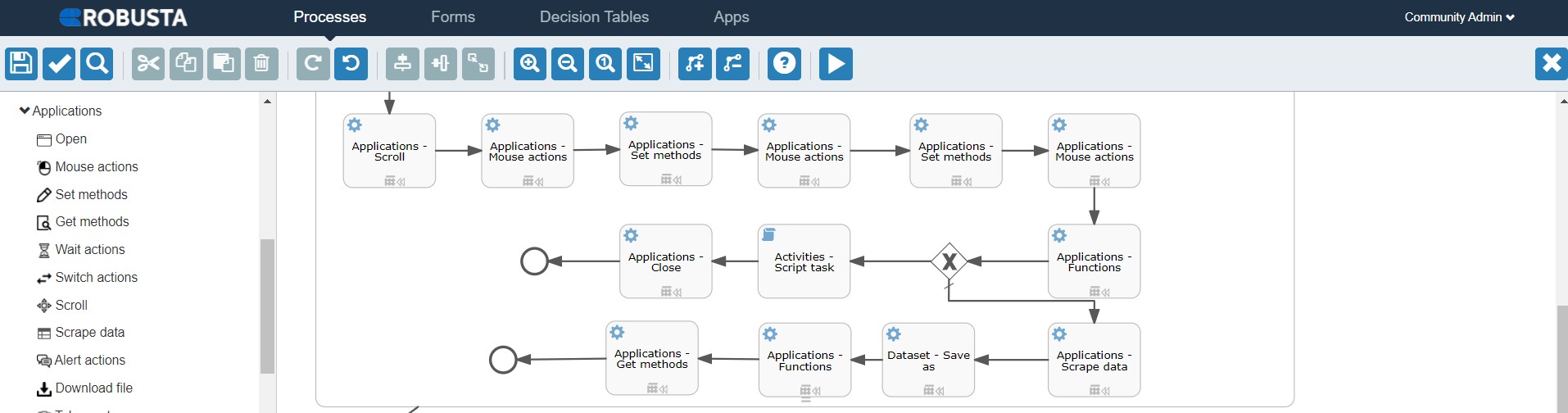
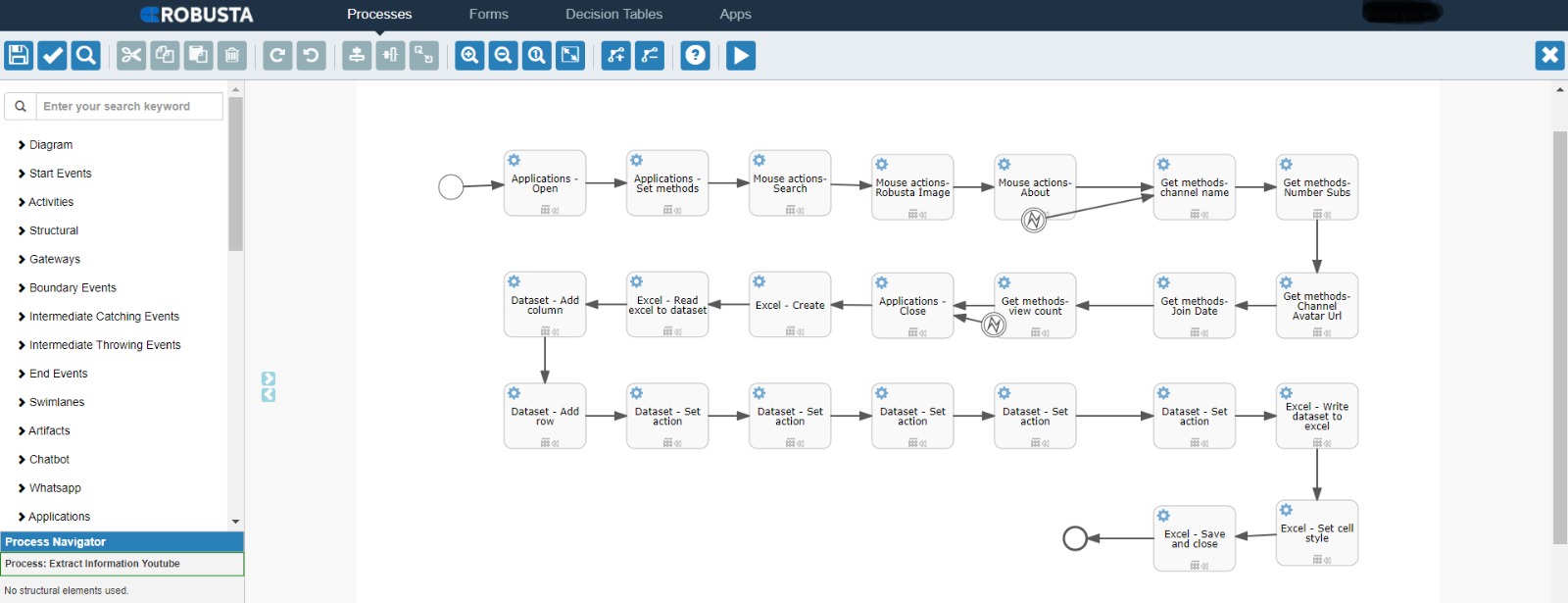
Next, transferred the data in Excel to the dataset and kept the number of rows in a variable with the “get size” component. Then we dragged the Sub Process component to the design field in the loop as the number of rows in Excel; took the information in the Excel file with the get action component,, kept it in a variable, and input it on the relevant fields on sahibinden.com with the set methods component and made the search with the mouse action component. Saved the data after the first search and the aggregated data after the second search separately with the scrape data component in excel format with the Save As component. If no results are found, the message “No ads suitable for our search filters” should be returned, and the process should be terminated.
Then closed the sahibinden.com site and saved the Excel file and closed it. Opened the Excel files saved with the Excel Open component. Took the URL information in the loop as much as the number of rows in the Excel file and wrote it to the H columns in the Excel files with the “Write dataset to Excel” component.
It enables one to search several different housing information with RPA on sahibinden.com and save the results in excel.
The process starts with the Open activity under Application, one of the components on the left, to open sahibinden.com Excel file and the website, and chose the “Chrome” option from the type field.
NOTE: You can access the Excel Folder used in the process here.
Then, managed the error with the Mouse action component to prevent the Captcha on the website, and passed the Captcha to access the sahibinden.com home page. Then, took a screenshot of the page with the ICU component and saved it in the Robusta Challenge folder. Next, kept the “Sahibinden.com” logo in a variable as text with the OCR component, found its coordinates, and clicked with the Keyboard Mouse component for the predetermined coordinates.
Next, transferred the data in Excel to the dataset and kept the number of rows in a variable with the “get size” component. Then we dragged the Sub Process component to the design field in the loop as the number of rows in Excel; took the information in the Excel file with the get action component,, kept it in a variable, and input it on the relevant fields on sahibinden.com with the set methods component and made the search with the mouse action component. Saved the data after the first search and the aggregated data after the second search separately with the scrape data component in excel format with the Save As component. If no results are found, the message “No ads suitable for our search filters” should be returned, and the process should be terminated.
Then closed the sahibinden.com site and saved the Excel file and closed it. Opened the Excel files saved with the Excel Open component. Took the URL information in the loop as much as the number of rows in the Excel file and wrote it to the H columns in the Excel files with the “Write dataset to Excel” component.


With our extensive collection of elements, creating and customizing layouts becomes
second nature. Forget about coding and enjoy our themes.